How to Save & Reuse ChatGPT Prompts — Prompt Templates Guide (2026)
Stop retyping the same ChatGPT prompts. Save them as reusable templates with variables — pick, fill in the blanks, and send. Free extension.


TL;DR: ChatGPT has no built-in prompt library. Save your best prompts as templates with {{variables}} in the free Prompt Manager extension: click + in the composer, pick a template, fill in the blanks, send. The free tier holds 7 prompts; Pro ($4.99/mo) removes the cap.
If you use ChatGPT regularly, you've probably typed the same instructions dozens of times. "Translate this to Spanish." "Summarize this article in 3 bullet points." "Write a professional email about…"
ChatGPT doesn't have a built-in way to save and reuse prompts. Here's how to fix that.
The Problem: No Prompt Library in ChatGPT
ChatGPT has no native feature for saving prompt templates. Every time you want to reuse a prompt, you have to:
- Retype it from memory (and probably get it slightly wrong each time)
- Copy-paste from a separate notes app or document
- Scroll through old conversations to find the prompt you used before
This is especially frustrating when you have complex prompts with specific instructions that took time to craft.
The Solution: Prompt Manager with Template Variables
ChatGPT Pro Tools adds a Prompt Manager directly into the ChatGPT interface. Save your best prompts as templates, add variables for the parts that change, and reuse them with a couple of clicks.
Key features:
- Reusable templates — save any prompt and use it again in seconds
- {{Variable}} support — add placeholders like
{{topic}},{{language}}, or{{tone}}that get filled in each time - Quick access via + menu — your prompts are one click away from the ChatGPT composer
- Organize & manage — edit, reorder, and delete templates from the Prompt Manager
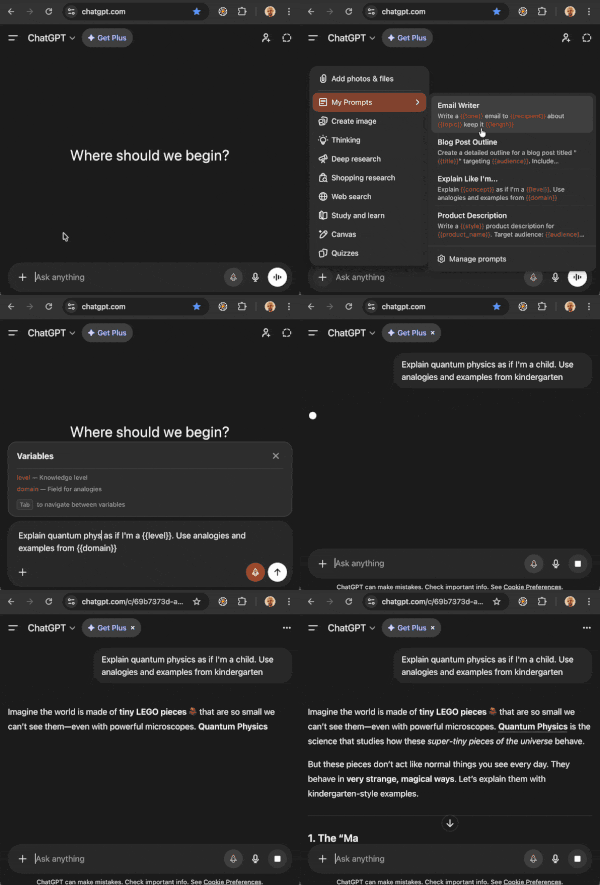
Step-by-Step Guide
Visit the Chrome Web Store and click "Add to Chrome." The extension activates automatically on chatgpt.com. Also available for Edge and Firefox.
Open the Prompt Manager and create a new prompt. Write your template and wrap any dynamic parts in double curly braces:
Translate the following text to {{language}}: {{text}}
You can add as many variables as you need. Each one becomes a field to fill in when you use the template.
When you're ready to use a saved prompt:
- Click the + button in the ChatGPT composer
- Hover over "My Prompts" in the menu
- Select a template from the submenu
If your template has variables, input fields appear for each one. Fill in the blanks and press Enter — ChatGPT receives your complete prompt instantly.
Prompt Template Ideas
Here are some templates to get you started:
| Template | Variables |
|---|---|
| Translate {{text}} to {{language}} | text, language |
| Write a {{tone}} email about {{topic}} to {{recipient}} | tone, topic, recipient |
| Explain {{concept}} like I'm {{audience}} | concept, audience |
| Summarize this in {{count}} bullet points: {{text}} | count, text |
| Review this {{language}} code for bugs: {{code}} | language, code |
Tips for Effective Prompt Templates
- Be specific in the fixed parts — the more context you bake into the template, the better the results
- Use descriptive variable names —
{{target_language}}is clearer than{{var1}} - Start with your most-used prompts — save the ones you type most often first
- Iterate and improve — update your templates as you discover what works best
- Let AI polish your draft — the built-in AI Prompt Optimizer rewrites a rough draft into a clearer, more effective prompt before you save it as a template
Frequently Asked Questions
Can you save prompts in ChatGPT?
ChatGPT doesn't have a built-in prompt library. However, browser extensions like ChatGPT Pro Tools add a Prompt Manager that lets you save, organize, and reuse your best prompts as templates — complete with variable support.
What are prompt template variables?
Variables are placeholders in your prompt templates written as {{variable_name}}. When you use the template, you'll be asked to fill in each variable before the prompt is sent. For example, a template like "Translate {{text}} to {{language}}" will ask you for the text and target language each time.
How do I access saved prompts in ChatGPT?
With ChatGPT Pro Tools installed, click the + button in the ChatGPT composer, then hover over "My Prompts" in the menu. Your saved templates appear in a submenu. Click one to insert it, fill in any variables, and press Enter to send.
Is the Prompt Manager free?
Yes. The Prompt Manager is included in ChatGPT Pro Tools, a free browser extension for Chrome, Edge, and Firefox. No account or API key required. The free tier includes up to 7 saved prompts; the optional Pro tier ($4.99/mo) removes the cap.


